
You can embed Panopto videos anywhere in a course where you have access to the rich content editor such as:
- Announcements
- Discussions
- Pages
Navigate to the area where you would like to embed a video and choose to make a new item.
Need to add a video to a Module? Learn how.
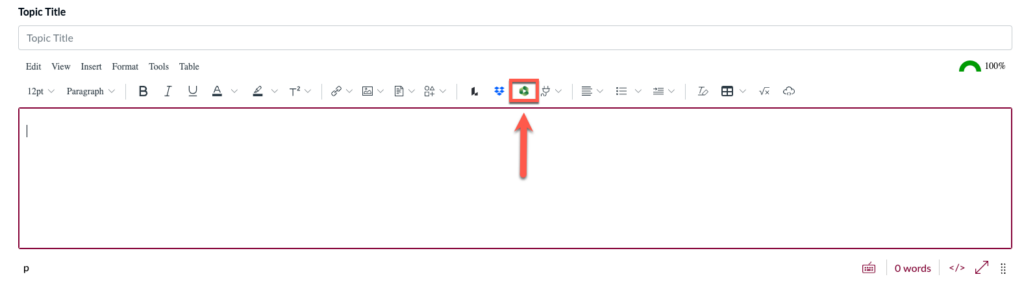
Click the Panopto icon in the text editor
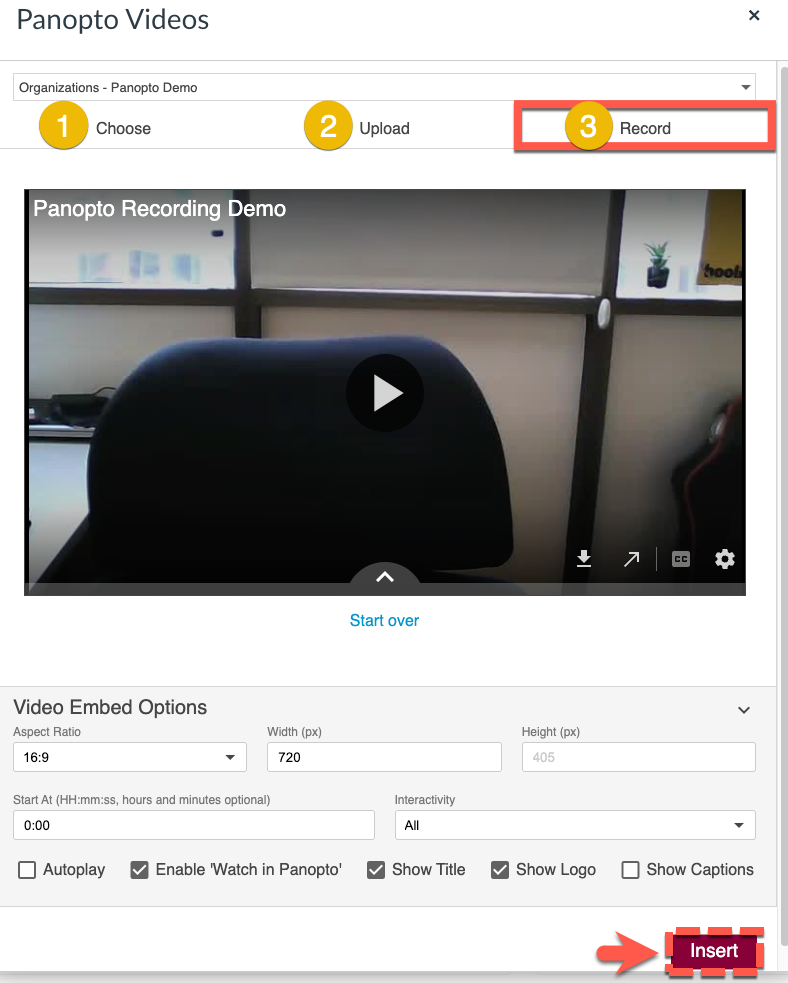
Choose, Upload, or Record
Option #1: Choose
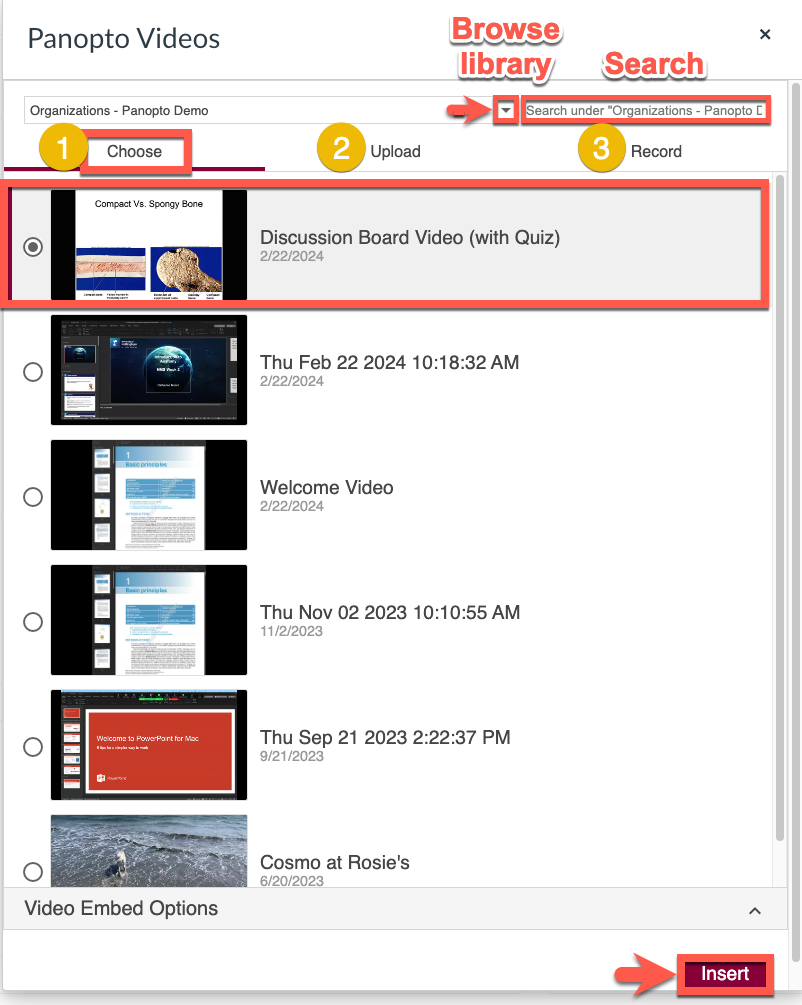
To choose an existing recording, browse or search through your folders. Select a video to embed and click Insert.
Need more details on how to choose a video? See this page.
Option #2: Upload
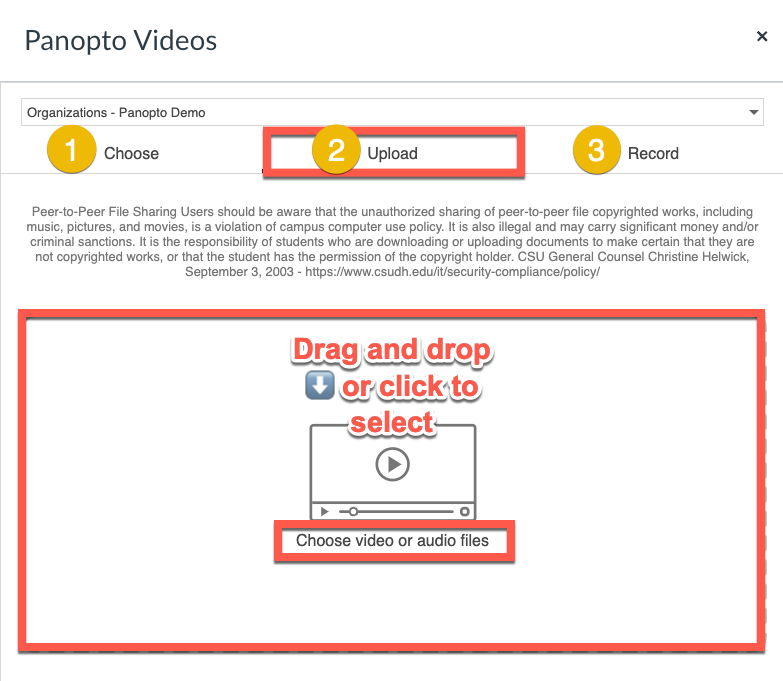
To upload a media file, drag and drop the video or audio file(s) or click Choose video or audio files to browse your computer.
Need more details on uploading? See this page.
Select the Launch Capture option to record from within your browser. Advanced users may select the Launch App option if already downloaded and installed.
For a complete guide on how to use Capture, please visit this page.
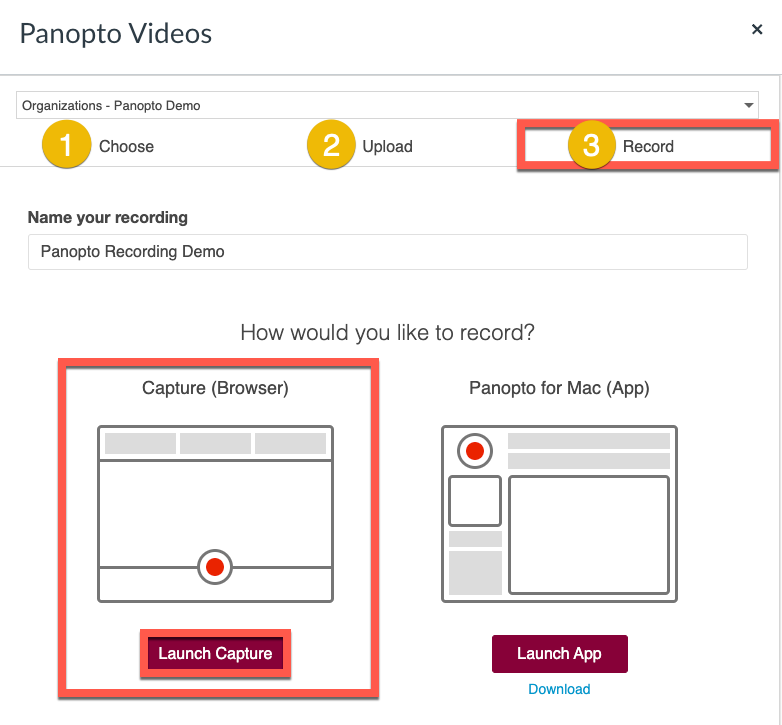
Once you have finished recording, you can review the video embed options and come back to the Canvas browser tab and click Insert.
Need more details on recording settings? See this page.