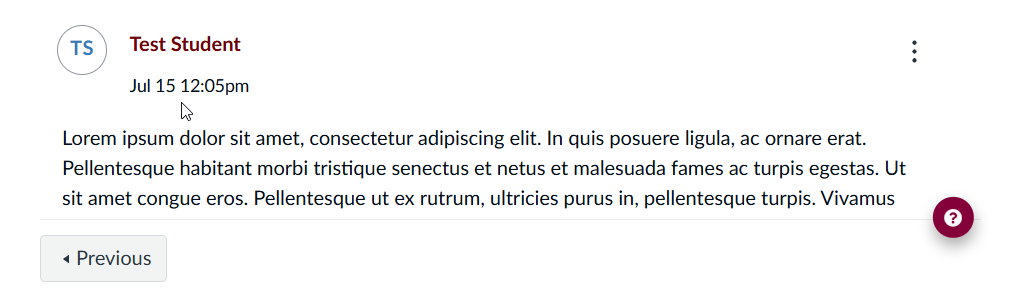
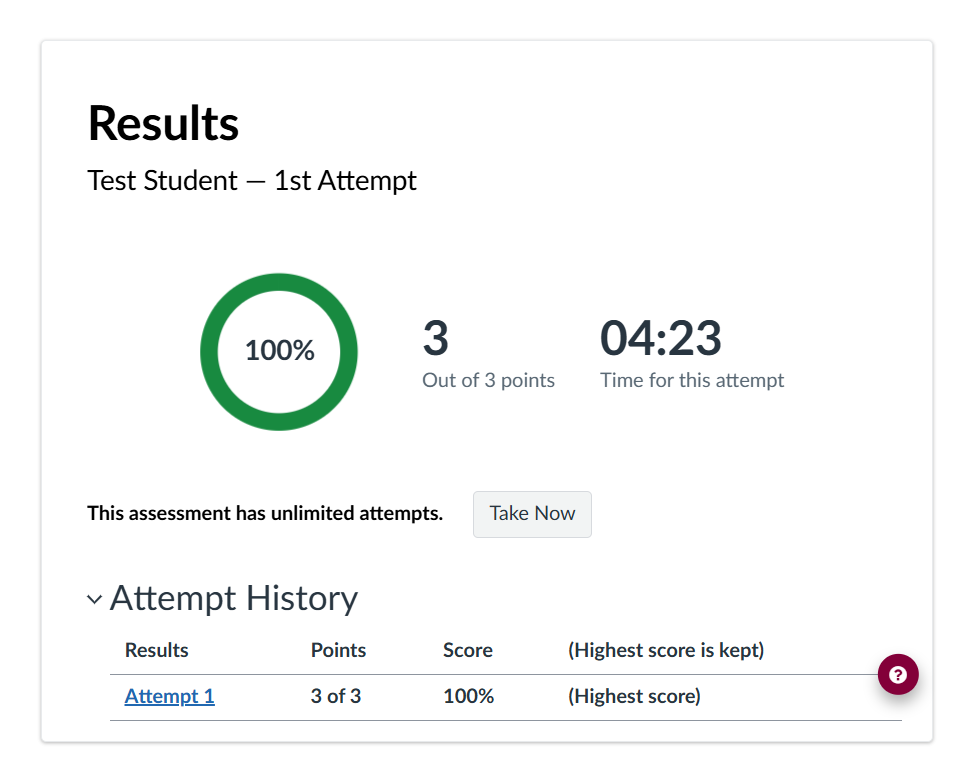
After uploading an assignment, posting to a discussion, or submitting a test, always double-check that your work was successfully submitted before leaving the page.
Here are a few ways to confirm your submission in Canvas:
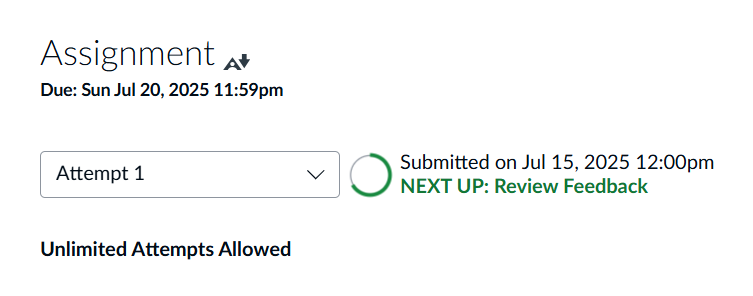
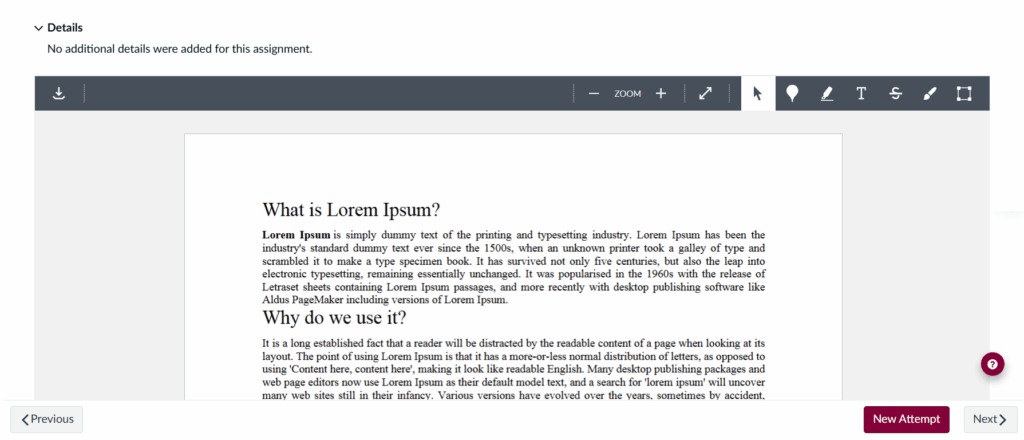
📄 Assignments After uploading a file to an assignment:
A submission timestamp will appear in the upper-left corner
A preview of the uploaded file will load shortly after
If multiple attempts are allowed, a “New Attempt” button will appear in the lower-right corner
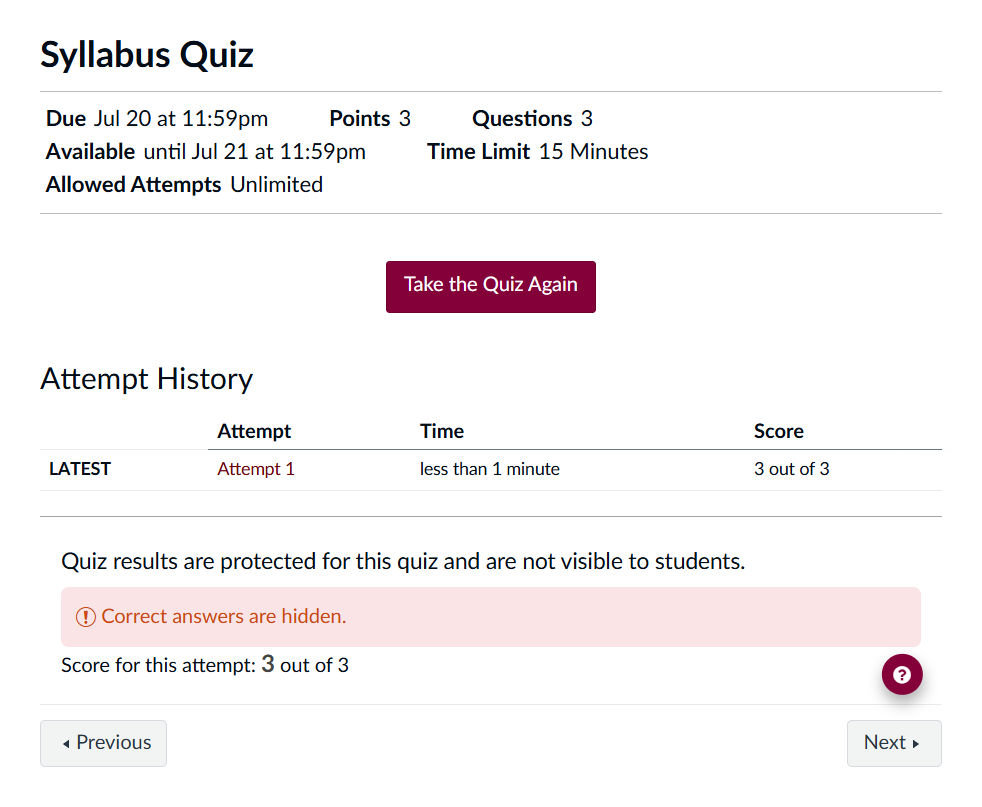
Depending on test settings, you may see just your overall score, or a more detailed view that includes the questions, your answers, and any instructor feedback
Note: If setup for multiple attempts, some tests may also display a button to retake the test
When uploading files to your course, keep file names simple and short. Use letters, numbers, hyphens (-), and underscores (_) to avoid compatibility issues.
Note: While spaces are generally okay, using hyphens or underscores is often preferred for clarity.
Avoid using these special characters in file names:
Accidents happen. Files can get lost, deleted, or corrupted. That’s why it is a good idea to keep backup copies of your schoolwork, including written assignments, presentations, and discussion posts.
Save your work on a USB drive or use a cloud storage service like Google Drive, OneDrive or Dropbox. As an active student, you already have access to these services!
Backing up your work takes just a few minutes and can save a lot of stress in the future. Don’t wait. Back up your work today!
Here is where you can find these cloud storage options:
OneDrive is available on Microsoft 365 through MyCSUDH.
When you graduate or leave CSUDH, your access to these services will change. Be sure to transfer your important files to a personal account or device ahead of time.
Here is some additional information on what happens to these services when you graduate:
Turnitin AI writing detection is now available, but instructors should use it with caution
Turnitin Originality, the centrally supported originality and plagiarism checker made available by Academic Technology per many requests from faculty through its Canvas learning management system, is adding a feature to scan for writing generated by artificial intelligence (AI) systems such as ChatGPT.
Instructors should be cautious about relying fully on results from the system because it may return false positives or fail to detect some AI-generated material.
Turnitin states: “We only flag something as AI-written when we are 98% sure it is written by AI. This is because we want to make sure we don’t falsely flag something as AI-generated that isn’t. This means, however, that we will likely miss up to 15% of text written by AI, with a less than 1% false positive rate (incorrectly identifying fully human-written text as AI-generated). While Turnitin has confidence in its model, Turnitin does not make a determination of misconduct, rather it provides data for the educators to make an informed decision based on their academic and institutional policies. Hence, we must emphasize that the percentage on the AI writing indicator should not be used as the sole basis for action or a definitive grading measure by instructors.”
The AI-checking feature will appear to users as an additional indicator within the Similarity Report interface. All submissions made to Turnitin after August 25th will automatically be checked for AI writing. The AI writing detection indicator and report will only display to instructors and is not visible to students.
For more information on Turnitin’s new AI-checking capability, please see Turnitin’s FAQs.
Accessibility Settings Update – Dyslexia Friendly Font
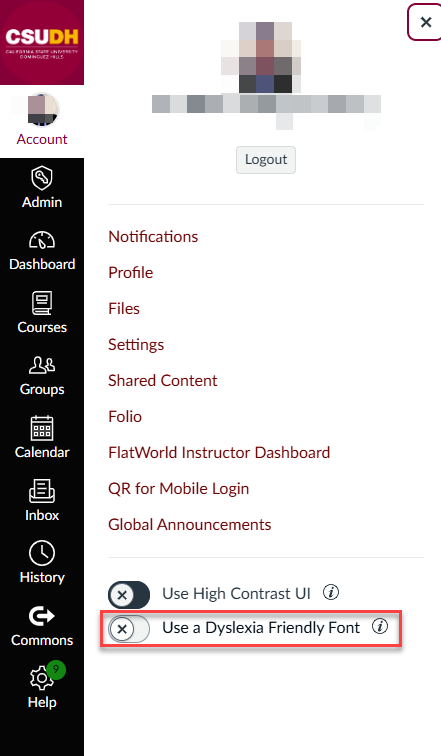
Reading just got a little easier! You can now switch to a dyslexia-friendly font in Canvas:
Click Account on the Global Navigation.
Toggle on Use a Dyslexia Friendly Font.
Refresh your browser to see the change.
Smart Search
Once instructors enable Smart Search and add it to their course menu students and instructors alike can quickly find relevant course information by typing in questions or keywords related to what they’re looking for. Smart Search is currently limited to only querying the following items within a course: content pages, announcements, discussion prompts and assignment descriptions.
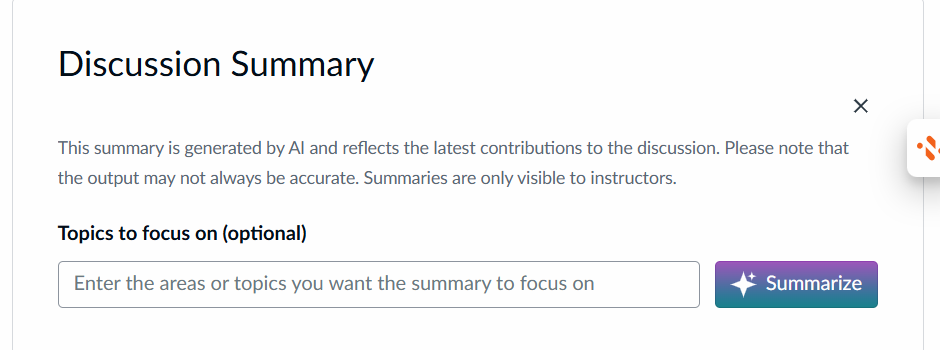
Discussion summary update – focus on specific topic
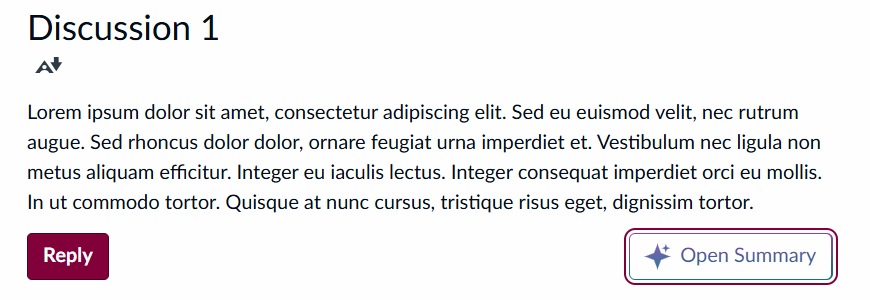
Canvas has introduced a feature that should make a little easier to review your Canvas Discussions. The intended purpose of this feature is to summarize key points, ideas, and questions that may arise in a discussion thread. This feature uses Generative AI to summarize student responses into a short recap making larger discussions easier to manage.
These summaries are only visible to the “Teacher” role and Canvas Admins and will never be visible to students. Summaries can be cleared and regenerated as more student responses are submitted to the discussion. Instructors can also provide prompts to the Discussion Summary to focus on specific aspects of the discussion. Please note that the output may not always be accurate. Summaries are only visible to instructors.
Manage legacy discussions – improved tools
After copying a course in Canvas, a banner may appear at the top of the Discussions page that requires attention. The banner allows instructors to enable or disable threaded replies for multiple discussions at once. Learn more.
Discussion checkpoints – multiple due dates
Discussion checkpoints are scheduled points within a discussion where students are encouraged (or required) to engage by posting an initial response, replying to peers, or reflecting on feedback. These checkpoints are spaced out over the duration of the discussion and can serve multiple purposes, such as keeping students on track, promoting thoughtful responses, and allowing time for reflection and interaction.
Benefits of Using Discussion Checkpoints
Keeps Students on Track: By requiring responses at set intervals, students are more likely to participate consistently rather than waiting until the last minute.
Encourages Reflection and Deeper Responses: Spacing out responses allows students to think more critically about each post, promoting thoughtful engagement.
Enhances Peer Interaction: Checkpoints encourage students to return to the discussion, read others’ responses, and continue conversations, leading to a more dynamic and collaborative learning experience.
Prevents Overwhelming the Thread: When all students post and reply simultaneously, threads can quickly become overwhelming. Checkpoints help distribute participation over time, making it easier for students and instructors to keep up.
Implementing Discussion Checkpoints in Canvas
Creating checkpoints in Canvas discussions is straightforward. Here’s how:
Break Down the Discussion Timeline: Instead of a single deadline, establish multiple due dates for initial posts and replies. For example, you might set:
An initial post due date by midweek (e.g., Wednesday).
A reply checkpoint to encourage interaction by the weekend (e.g., Saturday).
Clarify Expectations for Each Checkpoint: In the discussion prompt, explain what is expected at each checkpoint. For example, “By Wednesday, post your initial response. By Saturday, reply to at least two classmates with meaningful feedback.”
Grade by Checkpoint: This reinforces the importance of each stage and encourages active involvement. While the gradebook shows one column for the discussion, each checkpoint will have its own grade within Speedgrader.
By integrating discussion checkpoints, you can create a structured yet flexible framework that supports meaningful, continuous engagement. It not only fosters richer interactions but also builds a stronger online learning community within Canvas. Give checkpoints a try and see the difference they can make in your discussions!
New and Improved “Assign To” Feature in Canvas
You may have noticed recent changes to how you enter due dates and availability dates in Canvas. Instead of being listed at the bottom of an Assignment while editing, there was a link that opened a popup sidebar. Additional changes were then made to this change. And then Canvas changed it again—back to how it used to look when editing an Assignment. But really, that’s only part of the story!
The reason the changes were made in the first place was an effort to streamline instructor workflow and improve the ability to differentiate instruction. Previously, you could only manage dates with Assignments, Quizzes, and Discussions. With the enhanced Assign To feature, you can now “assign” Modules and Pages to sections or even individual students in your courses.
Have you ever wanted to:
Assign a module to just your graduate-level students who have been cross-listed into your undergraduate course
Make a page viewable for only a week
Assign a page to a single student
How about creating a discussion that is viewable by only one section of your cross-listed course?
Well, now you can! These varied Assign To options are now possible. You can also edit availability dates for an assignment without editing the assignment itself.
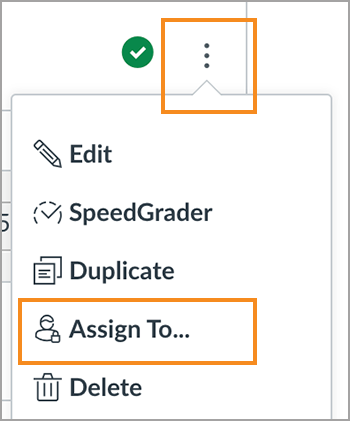
Look for the Assign To button at either the top of the page or listed as a menu item when you select the three vertical dots next to an item in Canvas.
Use this new Assign To feature, which will give you more control over how students interact with your courses.
ADDITIONAL RESOURCES
Visit the Canvas Instructor Guide for step-by-step instructions on Assigning an Assignment to an individual student.
Canvas has recently updated Discussions to include an option to disallow threaded replies. When enabled, students will not be able to reply to other students’ posts within a discussion.
This update may have affected some existing discussions due to differences in how new and legacy discussions are managed. As a result, Canvas may have automatically enabled the “Disallow Threaded Replies” setting to preexisting discussions.
As this time, we recommend checking the discussion settings in your active courses and master course shells to verify that the “Disallow Threaded Replies” option is not enabled for discussions where students need to reply to each other’s posts.
Below are screenshots illustrating how a discussion appears with threaded replies both disabled and enabled.
As we approach the new academic semester, we want to inform you about some important updates to Canvas that have taken place over the summer. These improvements will enhance your Canvas experience and streamline your workflow.
Below is a short summary of the latest improvements.