
Clear Your Browser Cache
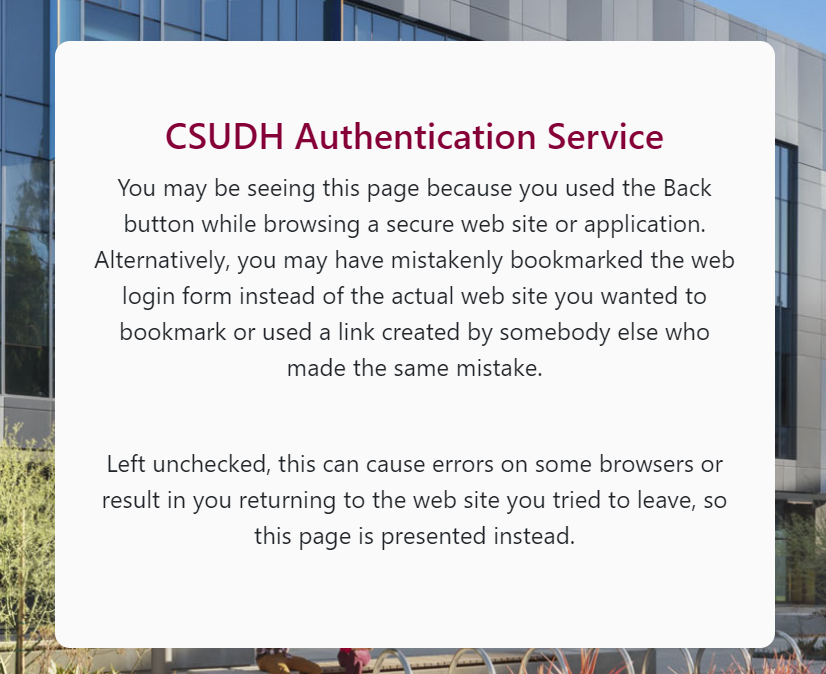
If you see the message below when attempting to access Canvas, please clear your browser cache to resolve the issue. Alternatively, you can also try a different browser.
How to Clear Browser Cache for Chrome, Edge, Firefox, & Safari

Chrome
To learn more about clearing your cache in Google Chrome, visit Google Support.
- In the Chrome browser toolbar, click the More menu icon.
- Select the Clear browsing data link.
- In the data drop-down menu, select the time range where you want to clear browsing data.
- Select the Cookies and other site data and Cached images and files checkboxes.
- Click the Clear data button.
Chrome – Clearing Canvas Cookies Only
Chrome also offers users a way to delete cookies for a single website such as Canvas:
- In the Chrome browser toolbar, click the More menu icon.
- Click the Settings link.
- Click the Privacy and security Third-party cookies option.
- Click the See all site data and permissions link.
- At the top right, search for instructure.com or the name of your institution’s URL.
- To the right of the site name, click the Delete icon.
- To confirm, click the Delete button.

Edge
To learn more about clearing your cache in Edge, visit Microsoft Support.
- In the Edge menu bar, click the Settings icon.
- Select Privacy, Search and Services link.
- Click the Choose What to Clear button.
- Choose the types of data or files you want to remove. Select the Cookies and other site data and Cached images and files checkboxes.
- Click the Clear Now button.

Firefox
To learn more about clearing your cache in Firefox, visit Firefox Support.
- In the Firefox menu bar, click the Firefox menu icon.
- Select the Settings link.
- Click the Privacy & Security tab.
- In the Cookies and Site Data section, click the Clear Data… button.
- Select both the Cookies and Site Data and the Cached Web Content checkboxes.
- Click the Clear button.

Safari
To learn more about clearing your cache in Safari, visit Apple Support.
- In the Safari menu bar, click the Safari option.
- Click the Clear History link.
- In the Clear drop-down menu, select the time range where you want to clear browsing data.
- Click the Clear History button.