Add Video Quiz to Course (Graded)

Once you have a video quiz created, you can add it to your course as an assignment. Canvas will automatically sync each student’s score to your course gradebook.

Click Assignments and +Assignment Button
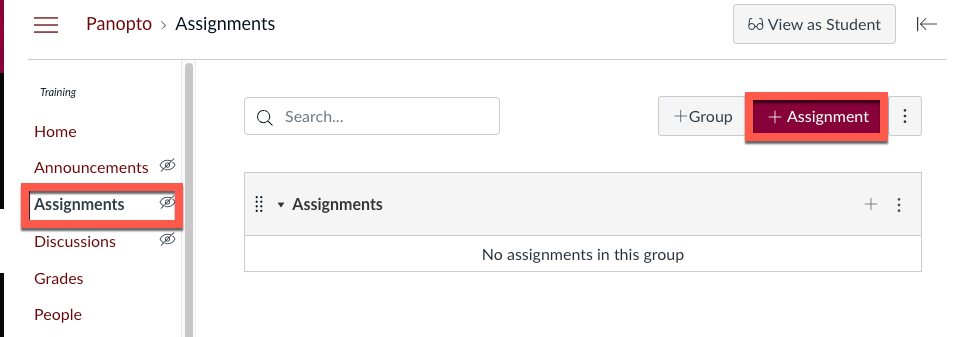
Screenshot of a webpage showing an "Assignments" section. A red "+ Assignment" button is highlighted on the right. The sidebar includes options like Announcements, Discussions, and Grades.

Type Assignment Name, Points, and Choose Assignment Group
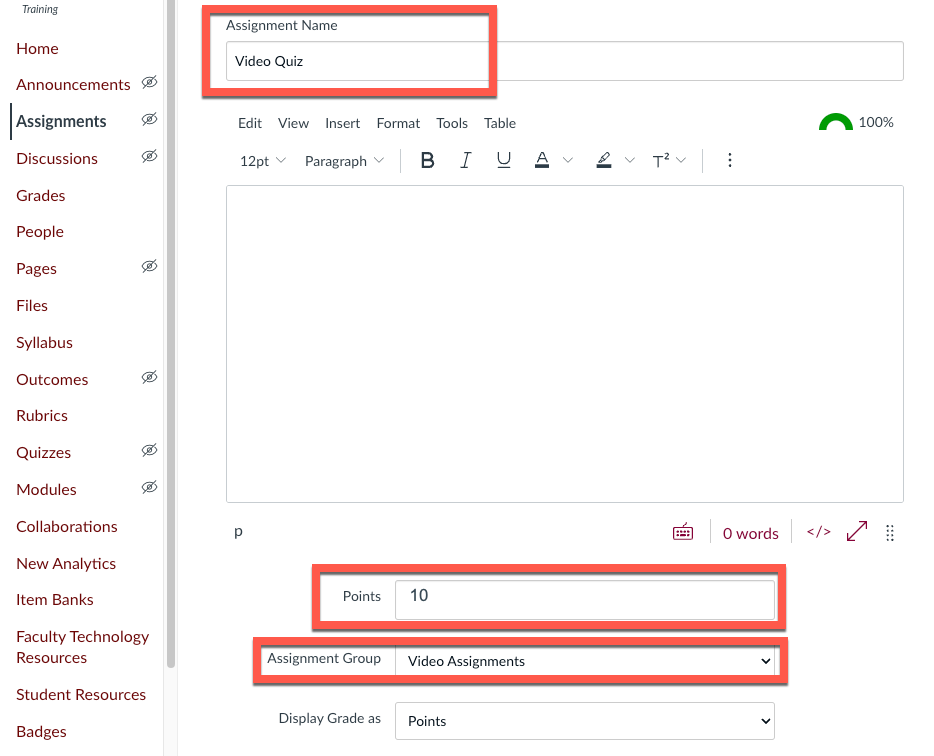
Screenshot of an online assignment creation page titled "Video Quiz," with options to input text, add points, and select assignment group.

For Submission Type: Select External Tool and click Find
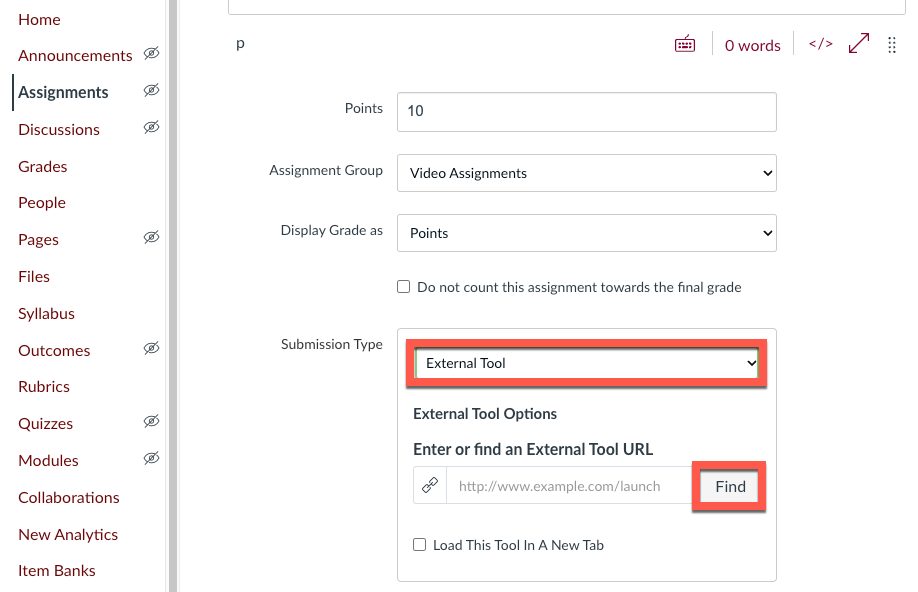
External Tool and Find selected

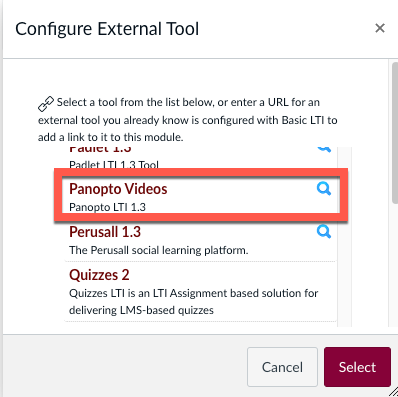
Find & Click Panopto Videos

Panopto Videos under Configure External Tool selected

Select Grade on quiz results and click Continue
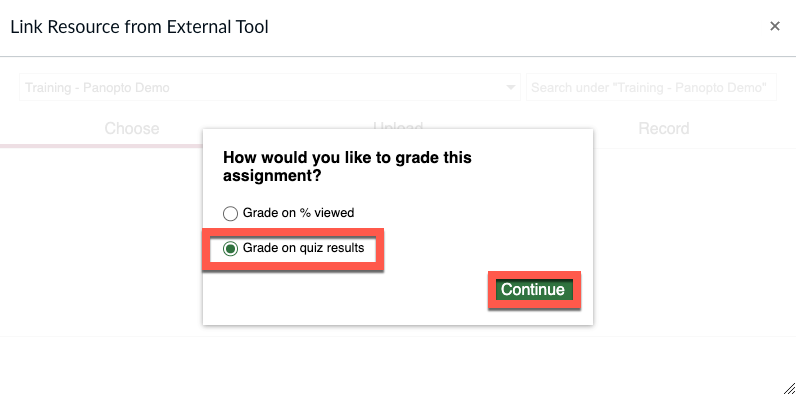
Grade on quiz results option selected

Select a video with a quiz and click insert

Note: Video must already have a pre-created quiz.
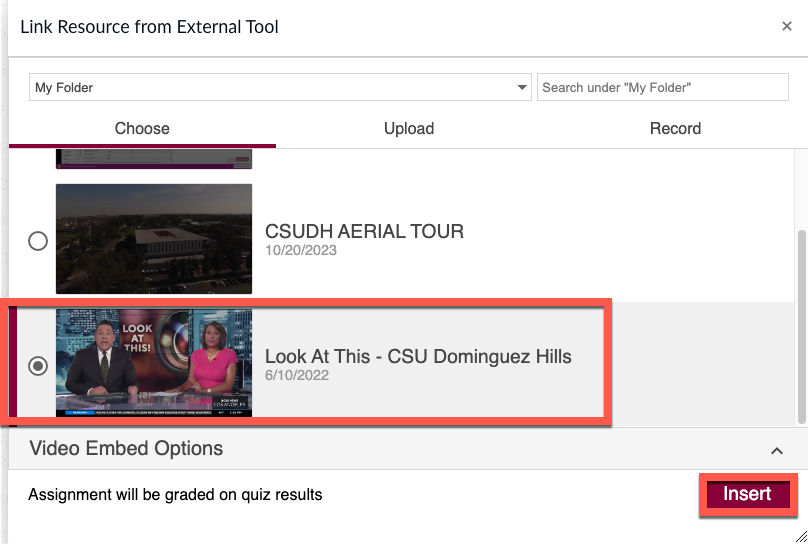
Screenshot of a video selection interface showing two thumbnails, highlighted option titled "Look At This - CSU Dominguez Hills" with date 6/10/2022, buttons for inserting and video embed options.

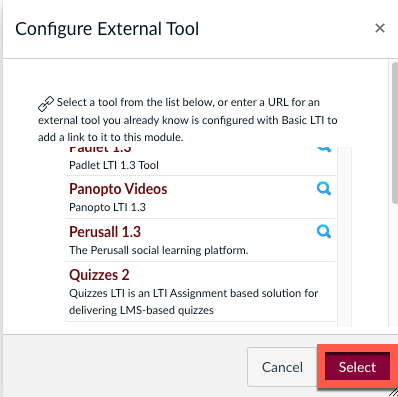
Click Select

Select button under Configure External Tool selected

Click Save & Publish when finished

Save & Publish button selected