
How-to Use a Video as an Assignment
No quiz? No problem! You can assign a video as an assignment and students will be graded based off the percentage of the video they watch.
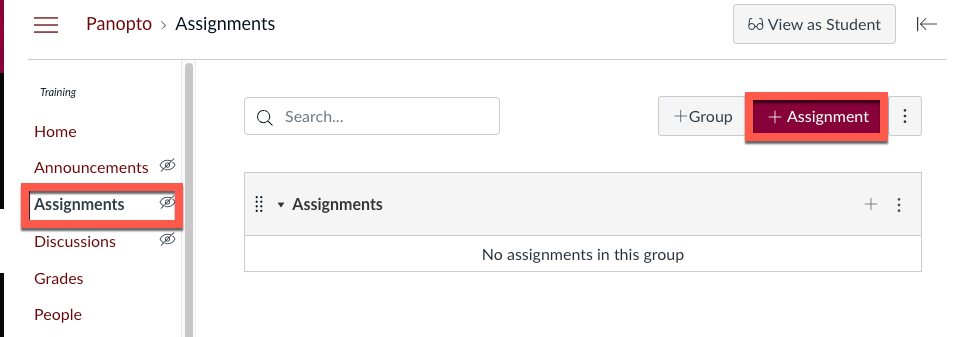
Click Assignments and +Assignment Button
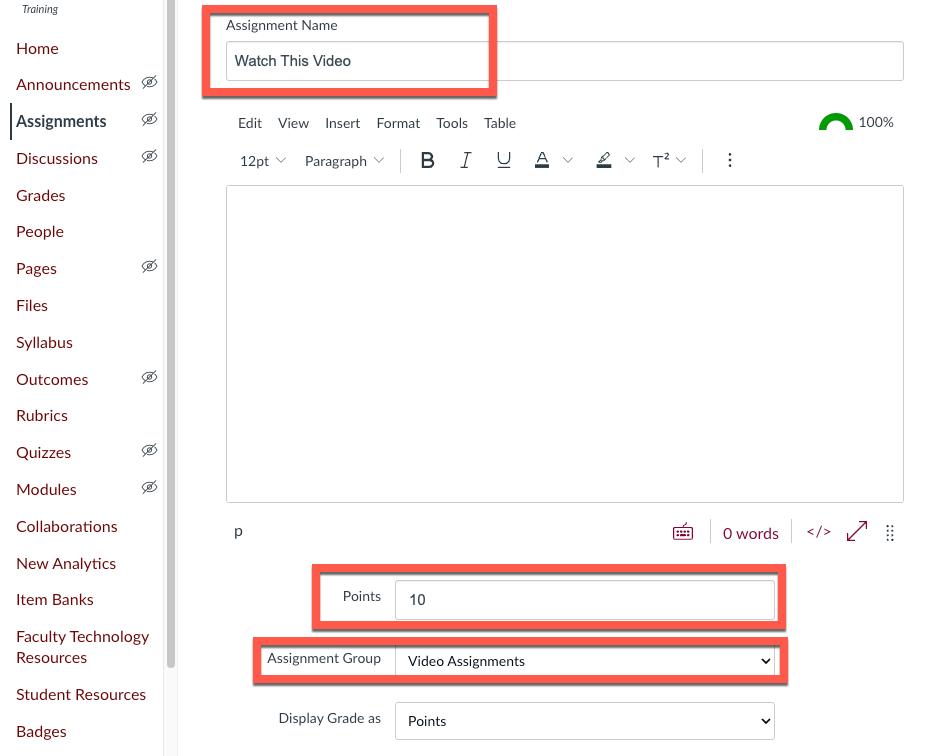
Type Assignment Name, Points, and Choose Assignment Group
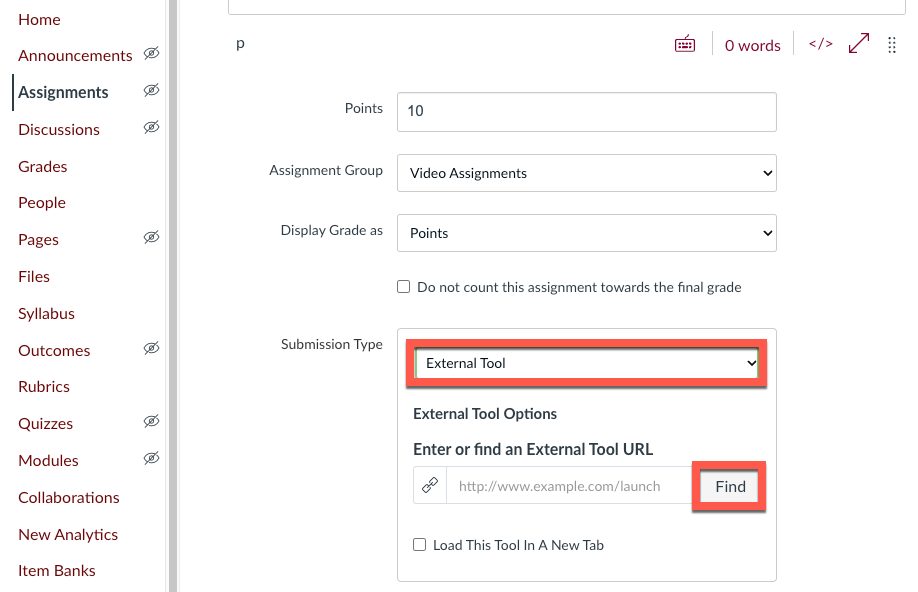
For Submission Type: Select External Tool and click Find
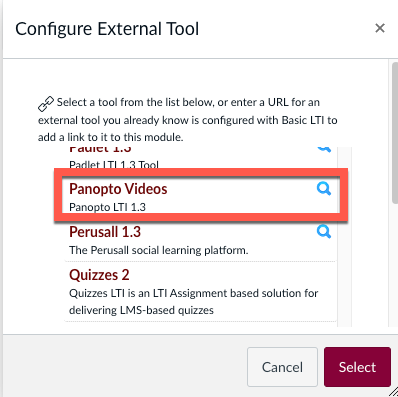
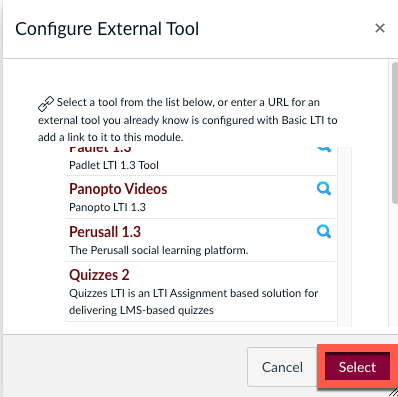
Find & Click Panopto Videos
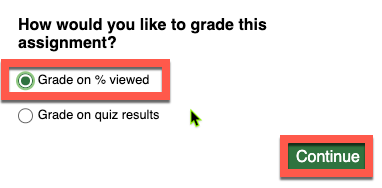
Select Grade on % viewed and click Continue
Note: Grades can take up to 3 hours to sync with Canvas once a student begins watching.
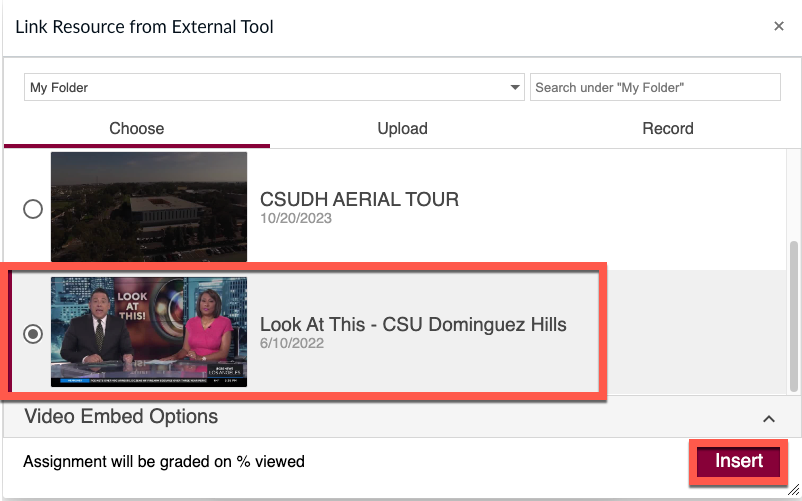
Select a video without a quiz and click insert
⚠️ Video must NOT have a quiz as this will cause erroneous grades issues.
Click Select
Click Save & Publish when finished

Need more details? See this page.