
Students can submit a video assignment through Panopto integration in Canvas. A standard Canvas assignment can be created for points.
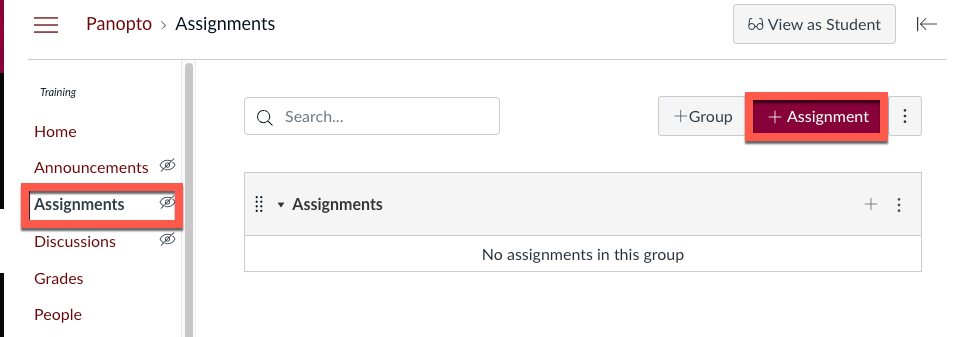
Go to Assignments and click +Assignment
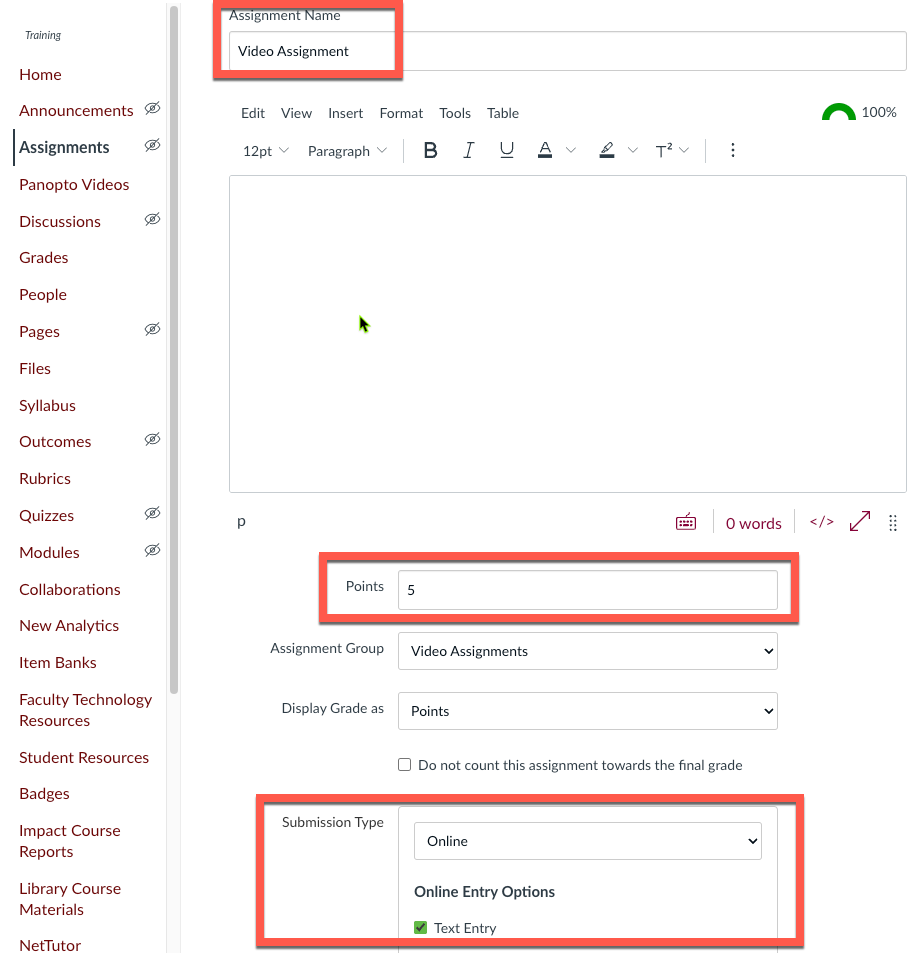
Type Assignment Name, specify Points, and set Submission Type to Online with ✅ Text Entry
Add description and assignment instructions (optional)
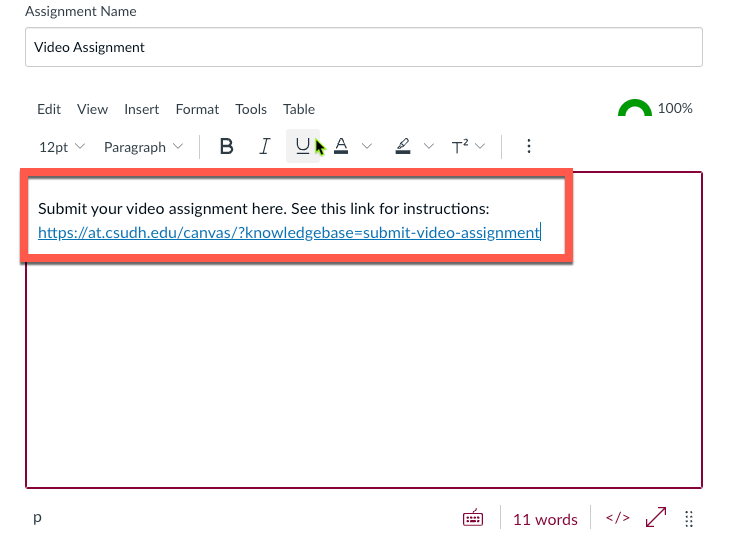
Tip: Copy and paste the instructions below to provide students with a “how-to” guide for submitting their video assignment.
Instructions for students (copy & paste):
Submit your video assignment here. See this link for instructions:
https://at.csudh.edu/canvas/?knowledgebase=submit-video-assignment
Click Save & Publish once assignment is ready

Need more details? See this page.